Browse Month

September 2018

ProVu Exhibit at Channel Live 2018

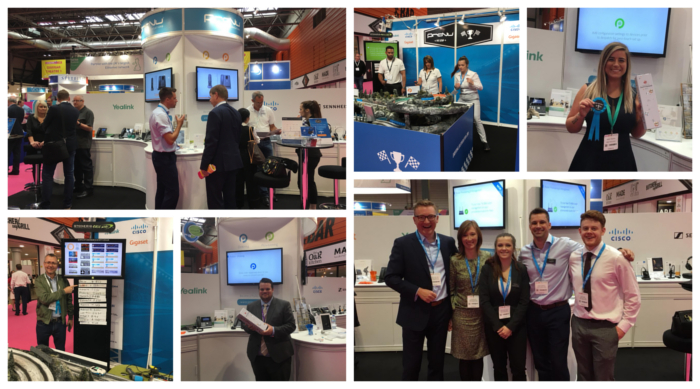
It’s been a busy month for the ProVu Team with numerous webinars and the Channel’s biggest exhibition, Channel Live. This year’s show was the second show to be held at the Birmingham NEC and we were delighted to be joined by Cisco, Gigaset, Sennheiser and Yealink on our stand. As always it was great to catch up with our partners, old and new.

In addition to our product-focussed stand, we also had the ProVu Pitstop where we had everyone’s childhood favourite, Scalextric on the stand. Throughout the two days visitors competed to make it on to the ProVu Pitstop leaderboard to be in with a chance to win one of four bottles of Champagne. Congratulations to everyone who made it onto the leaderboard and to our 4 Channel Champions!

If you attended the show, we hope you enjoyed it too – we look forward to seeing you again next year!

3CX Intermediate Courses – October 2018

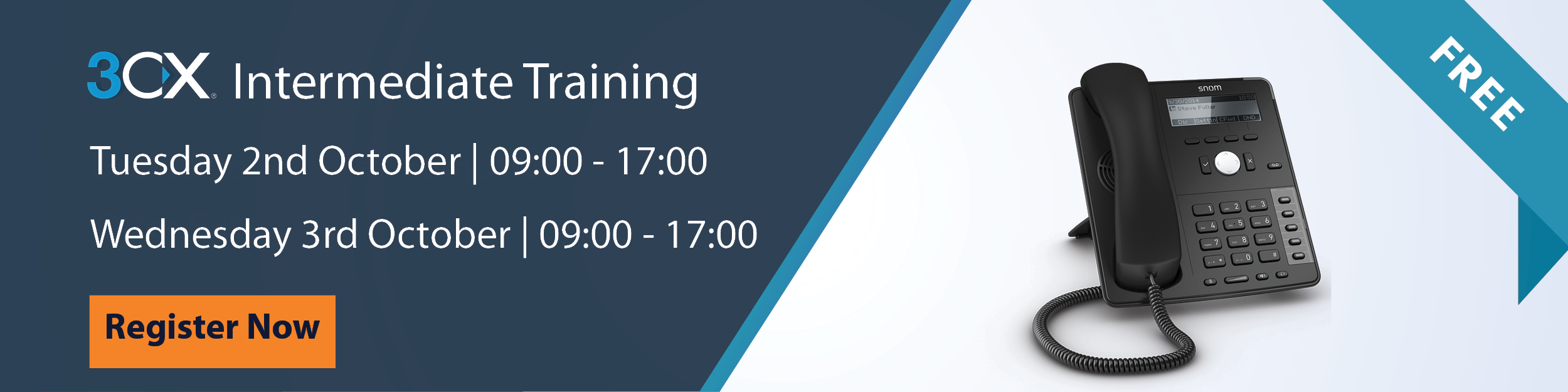
We will be running two 3CX Intermediate Training Courses next month. Suitable for those looking to advance to the next level with 3CX, our intermediate training is open to all 3CX partners.

Designed to equip you with the knowledge to take the intermediate certification exam, our Technical Support Manager and accredited 3CX trainer, Andy Devine will cover everything you need to sit the intermediate certification exam.

Simply select your preferred session and register today to reserve your free space and receive a free Snom D712 phone!

When & Where?

ProVu Offices,
Savile Mill,
Savile Street,
Huddersfield,
HD3 4PG

Tuesday 2nd October, 09:00 – 17:00

Wednesday 3rd October, 09:00 – 17:00

Please note, these courses have limited capacity. Places will be allocated free of charge on a first come, first served basis.

Cisco CP Range – Generating Support Logs (PRT File)

Part 1 – Configure the unit to start logging in ‘DEBUG’ mode and replicate the issue

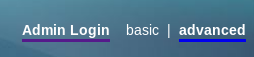
  1. Login to the web user interface and select the ‘admin‘ user. After selecting the ‘admin‘ user go in to advanced mode by pressing ‘advanced‘ on the top right of the screen.
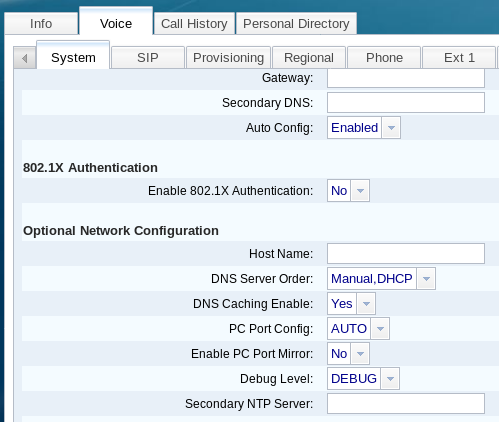
  2.  Once ‘advanced‘ mode is applied press the ‘voice‘ tab and also the ‘system‘ tab. Once on the ‘system‘ page scroll down until you get to ‘Optional Network Configuration‘ and in the drop down box next to ‘Debug Level‘ set this to ‘DEBUG‘ and press ‘Submit All Changes‘. 
  3. Now that the phone is logging everything in ‘DEBUG‘ mode you need to replicate the issue.

Part 2 – Generating the log

Now the you’ve replicated the issue we need to export the log.

To do this follow the steps below:

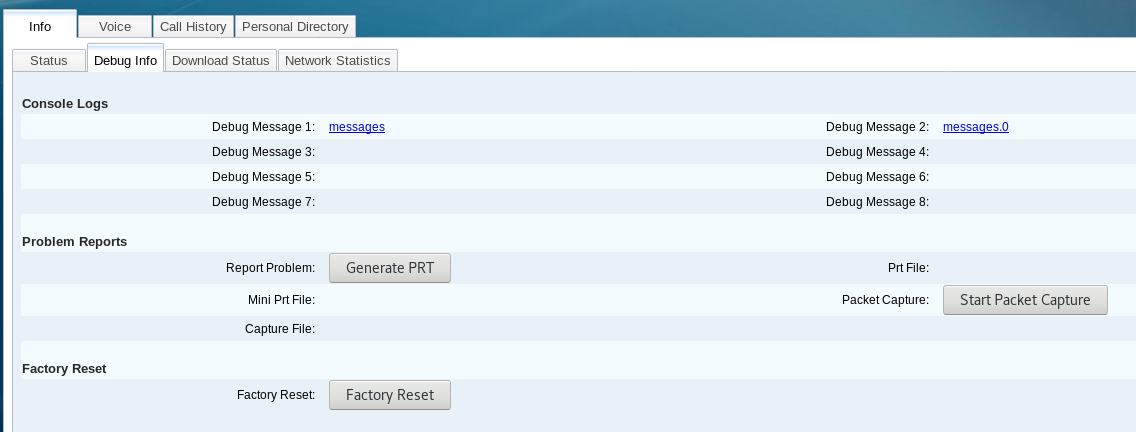
  1. Login to the web user interface as before using ‘admin‘ and ‘advanced‘ mode. Once logged in select the ‘info‘ tab and also the ‘Debug Info‘ tab.  Once you are on this page press the ‘Generate PRT‘ button.
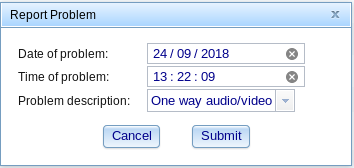
  2. Once you press the button you will get a popup box asking you to enter the date and time of the problem as well as selecting a description. If your problem isn’t listed select ‘Other‘ and press ‘Submit‘.
  3. After pressing ‘Submit‘ and allowing the phone to generate the file you should get another popup notification saying the PRT file has been generated and can be access from the phone directly. Press ‘OK‘ and download the file by clicking on the PRT file link across from the ‘Generate PRT‘ button.