
This blog post explains connecting and configuring of a %> unit with<%popup(20110518-07438.jpg)
Connections are quite simple. Cityline Keypad comes with two different cables.
1 X 3 pin connector
1 X 5 pin connector
Step 1: Connect the 3 and 5 pin connector to INPUT and OUTPUT connections on the cityline keypad board. 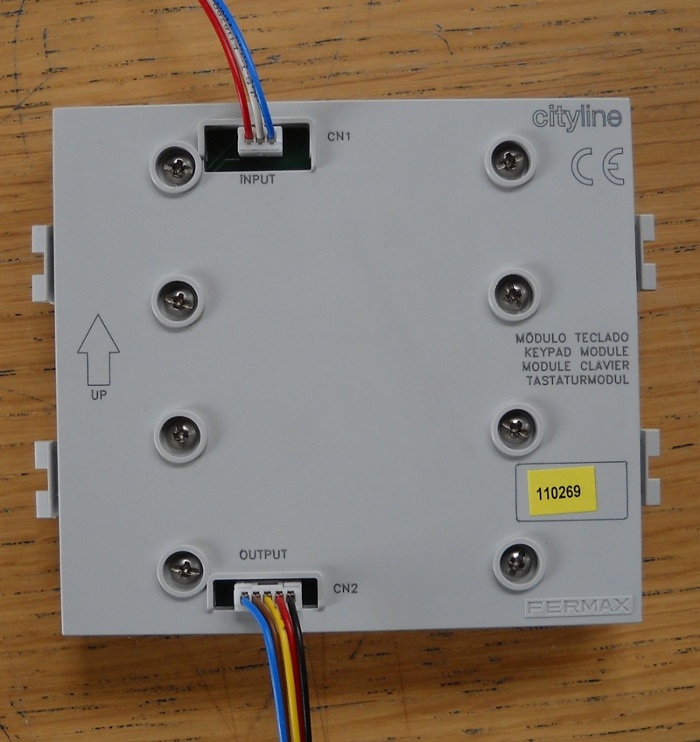
Step 2: Connect 3 pin connector to connection LT (point 19 on this picture) of the Audio/Video module

Step3: Connect 5 pin connection to EXP connection or connection 18(Please refer to digram in step 2).
Step 4: Finally to be able to dial numbers from keypad,
login to the web interface of the door unit and go to Basic Parameters.
Change the following settings:
1. Keyboard to position : 1
2. Under mode of keyboard choose Direct choice number (phone)
Thats it. Now enter the number and press the A button to dial it.
To unlock the door using keypad, configure unlock codes under Relays section of web gui and save changes. Finally press the B (Bell) button and enter to code to unlock door.
If you don’t want a unit with a keypad and only interested in 1 or 2 button door entry products please look at the our ProTalk range.